How to configure email forwarding in Office 365
For staff or scholars with mailboxes created before August 30, 2026, please see our Zimbra instructions.
In recent years, major email providers have implemented enhanced security measures to protect against spam and phishing attempts. While these standards are beneficial, they frequently cause forwarded emails to be blocked or deleted without notification. Unfortunately, these policies are set by the sender's provider and enforced by the receiver's provider (such as Gmail, Microsoft, and Yahoo!), and they are beyond the Institute's control. For this reason, we recommend against forwarding your email.
If you do decide to configure email forwarding, you can do so as follows:
- Log into Outlook web portal. For information on how to log into the portal, see our instructions webpage.
Click the Settings (gear) icon in the top-right corner.
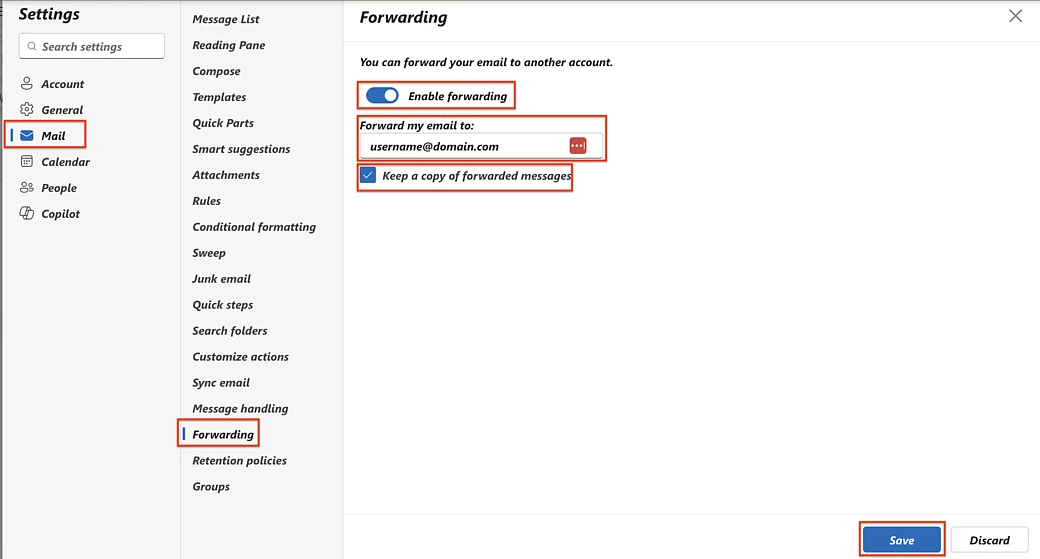
- Click Mail.
- Click Forwarding.
- Toggle the switch to Enable forwarding.
- Type the destination email address where you want your messages sent.
- Check Keep a copy of all forwarded messages.
- Click Save.
If you need assistance, please contact the Help Desk responsible for supporting your department, group, program or School.
Over the past decade, a global shift in email security standards has begun to negatively impact email forwarding. These global security changes are necessary to better protect end users from phishing and other email-based attacks.
Every email carries a digital 'seal' to verify the original sender. When the IAS email server forwards the message, the receiving server detects that the original seal doesn't match the forwarding server.
This suspicious mismatch is often interpreted as a security risk, leading the receiving server to reject or silently discard the message. Important communications may never reach your inbox, and you won't receive an error notification indicating that the email was dropped.
This is not a restriction imposed by the Institute; it is a policy set by the sending institution and enforced by the receiving institution. There is little we can do as an intermediary to change the outcome.
To ensure you receive all official communications, we strongly recommend that you disable automatic forwarding. Please access your Institute mailbox directly using our web interface or configure the account on your mobile devices.