How to access IAS Email on Outlook 365
For staff or scholars with mailboxes created before August 30, 2026, please see our Zimbra instructions.
Institute Faculty, Members, and Staff can access their Institute mailbox in two ways: via the Institute's webmail portal or via their preferred desktop or mobile email client (e.g., Microsoft Outlook, Mac Mail, Thunderbird). Please refer to the instructions for your preferred method below. If you have any questions about these instructions, or if they differ from the version of the application installed on your computer or mobile device, please contact the IAS Help Desk responsible for computing support for your department, group, or school.
Items you will need before proceeding:
- Your IAS email address — [email protected], where username is your assigned IAS username.
- Your IAS passphrase (also known as your password) is case-sensitive and must be entered correctly to ensure access to your IAS mailbox and its associated features and capabilities.
Webmail portal (e.g., Google Chrome, Mozilla Firefox, Safari, etc.)
To view your IAS email via a web browser
- Go to the Outlook login portal.
- An Institute-branded Duo Security Single Sign-On webpage will appear.
- If this is your first time seeing this screen:
- You will be prompted to enter your IAS email address (e.g., [email protected], where username is your assigned IAS username).
- Click the Next button.
- If your IAS email address is already displayed, click the Next button.
- If this is your first time seeing this screen:
- Enter your IAS passphrase in the field below Password.
- Click the Log in button.
Duo Security will prompt you to either check your smartphone for a Duo Push or enter a six-digit code from your smartphone or a Duo hardware token. Respond accordingly to complete the multi-factor authentication (MFA) process.
Image

- A new webpage will appear and ask, "Do you trust ias.edu?" Click the Continue button.
- You will be asked, "Stay signed in?" Select the appropriate response.
Your IAS mailbox will now be displayed.
Logging out
When you have finished your email session, we recommend logging out of the Outlook portal before closing your web browser:
- In the Outlook toolbar, at the far right, click your avatar (or initials).
- Click on Sign out.
Windows desktop email applications
Important: The instructions below apply to the classic version of Microsoft Outlook that comes with Microsoft Office and standard Microsoft 365 desktop plans. They will not work with the new Outlook app that is preinstalled on many Windows 11 computers.
- Launch Microsoft Outlook.
If this is the first time you are launching Microsoft Outlook, you will see the "Welcome to Outlook" window. Enter your IAS email address (e.g., [email protected], where username is your assigned IAS username).
Image

- Click the Connect button.
- An Institute-branded Duo Security Single Sign-On webpage will appear.
- If this is your first time seeing this screen:
- You will be prompted to enter your IAS email address (e.g., [email protected], where username is your assigned IAS username).
- Click the Next button.
- If your IAS email address is already displayed, click the Next button.
- If this is your first time seeing this screen:
- Enter your IAS passphrase.
- Click the Log in button.
- Duo Security will prompt you to either check your smartphone for a Duo Push or enter a six-digit code from your smartphone or a Duo hardware token. Respond accordingly to complete the multi-factor authentication (MFA) process.
- A Duo Security prompt will ask, "Is this your device?" Select the appropriate response.
You may be asked if you want to sign in to all apps and websites on this device. Choose "Yes".
Image

- Outlook will finish setting up your profile.
Microsoft Outlook is now configured to access the contents of your IAS mailbox.
The instructions below are for configuring Mozilla Thunderbird to access your IAS mailbox.
- Open Mozilla Thunderbird.
- Click the burger menu icon (≡).
- Click on Account Settings.
- Click the Add Account button.
- Click on Mail Account.
- Enter your Full name.
- Enter your IAS email address (e.g., [email protected], where username is your assigned IAS username).
Click the Manual Configuration link.
Image

- Use the following settings for the Incoming Server:
- Protocol: IMAP
- Hostname: outlook.office365.com
- Port: 993
- Connection Security: SSL/TLS
- Authentication Method: OAuth2
Username: Your full IAS email address (e.g., [email protected], where username is your assigned IAS username)
Image

- Click the Continue button.
- Use the following settings for the Outgoing Server:
- Protocol: SMTP
- Hostname: smtp.office365.com
- Port: 587
- Connection Security: STARTTLS
- Authentication Method: OAuth2
Username: Your full IAS email address (e.g., [email protected], where username is your assigned IAS username)
Image
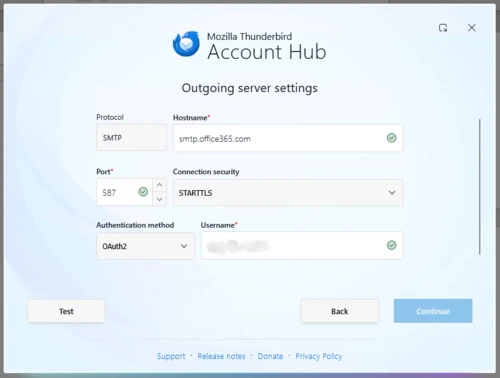
- Click the Test button.
- If configuration errors are detected, correct them, then click the Test or Re-test button to test again. Continue this process until no errors are detected.
If no errors are detected, click the Continue button.
Image

- On the Microsoft screen, click on Work or school account.
- An Institute-branded Duo Security Single Sign-On webpage will appear.
- If this is your first time seeing this screen:
- You will be prompted to enter your IAS email address (e.g., [email protected], where username is your assigned IAS username).
- Click the Next button.
- If your IAS email address is already displayed, click the Next button.
- If this is your first time seeing this screen:
- Enter your IAS passphrase in the field below Password.
- Click the Log in button.
- Duo Security will prompt you to either check your smartphone for a Duo Push or enter a six-digit code from your smartphone or a Duo hardware token. Respond accordingly to complete the multi-factor authentication process.
- A Duo Security prompt will ask, "Is this your device?" Select the appropriate response.
- Click the Finish button. Thunderbird will finish configuring your account.
Mozilla Thunderbird is now configured to access the email contents of your IAS mailbox.
macOS desktop email applications
The instructions below are for configuring Mac Mail to access your IAS mailbox.
- Open the Mail app on your Mac.
Click the Mail menu in the top-left corner of your screen.

Select Add Account from the drop-down menu.
Image

- In the list of account types, click on Microsoft Exchange.
- Click the Next button to proceed.
- Enter your IAS email address (e.g., [email protected], where username is your assigned IAS username) in the provided field.
- Click the Sign In button.
- When prompted, select the Work or school account option.
- An IAS-branded Duo Security window will appear. Confirm that your IAS email address is displayed correctly (e.g., [email protected], where username is your assigned IAS username), then click the Next button.
- Enter your IAS passphrase in the password field.
- Click the Log In button.
- Duo Security will prompt you to either check your smartphone for a Duo Push or enter a six-digit code from your smartphone or a Duo hardware token. Respond accordingly to complete the multi-factor authentication process.
- A Duo Security prompt will ask, "Is this your device?" Select the appropriate response.
Choose the apps you want to use with this account (e.g., Mail, Contacts, Calendars, Reminders, Notes) by checking the corresponding boxes.
Image

- Click the Done button to finish.
The Mac Mail app will now configure your account. Once the setup is complete, you will be able to access the contents of your IAS mailbox.
Below are instructions for configuring Microsoft Outlook for Mac to access your IAS mailbox.
- Launch Microsoft Outlook.
If this is your first time launching Microsoft Outlook, the "Welcome to Outlook" window will appear. Enter your IAS email address (e.g., [email protected], where username is your assigned IAS username).
Image

Click Continue.
Image

- Click Work or school account.
- Click Work or school account a second time.
- An IAS-branded Duo Security window will appear. Confirm that your IAS email address is displayed correctly (e.g., [email protected], where username is your assigned IAS username), then click the Next button.
- Enter your IAS passphrase.
- Click Log in.
- Duo Security will prompt you to either check your smartphone for a Duo Push or enter a six-digit code from your smartphone or a Duo hardware token. Respond accordingly to complete the multi-factor authentication process.
- A Duo Security prompt will ask, "Is this your device?" Select the appropriate response.
- A message will appear letting you know that your Microsoft 365 account has been added. Click Personalize Now to customize Microsoft Outlook's appearance and theme to your liking, then click Continue to advance through the personalization screens.
Click Done when you have finished making your selections.
Image

You will now be able to use Microsoft Outlook to access the contents of your IAS mailbox.
Follow these steps to configure your IAS mailbox in Mozilla Thunderbird:
- Open Mozilla Thunderbird on your Mac.
Click the drop-down Thunderbird menu in the top-left corner of your screen.

Select Account Settings from the drop-down menu.
Image

Click the Add Account button.
Image
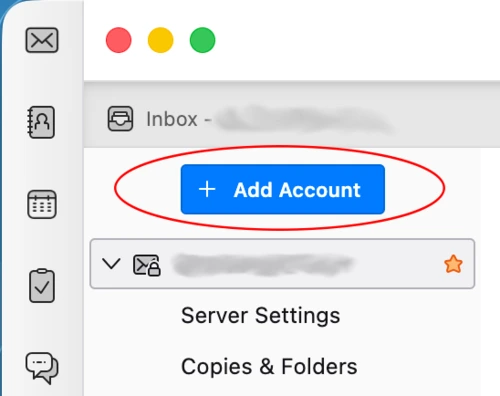
Select Mail Account... from the options.
Image
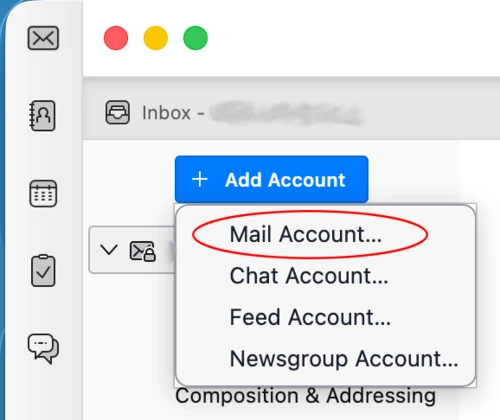
- In the "Mail Account Setup" window:
- Enter your full name (e.g., Jane Doe) in the Your full name field.
- Enter your IAS email address (e.g., [email protected], where username is your assigned IAS username) in the Email address field.
Click on Configure manually to enter the server settings.
Image
Incoming Server Settings
- Protocol: IMAP
- Hostname: outlook.office365.com
- Port: 993
- Connection Security: SSL/TLS
- Authentication Method: OAuth2
Username: Enter your IAS email address (e.g., [email protected], where username is your assigned IAS username).
Image
Outgoing Server Settings
- Hostname: smtp.office365.com
- Port: 587
- Connection Security: STARTTLS
- Authentication Method: OAuth2 [Note: Thunderbird may require you to test the configuration once before OAuth2 appears in this list of options. See step 8 to learn how to test the configuration. Be sure to select OAuth2 before finalizing your configuration.]
Username: Enter your IAS email address (e.g., [email protected], where username is your assigned IAS username).
Image
Click on the Test button to verify the settings.
Image

- If errors are detected, correct them and click Test again.
- Please ensure that OAuth2 is selected for the Authentication method.
Once the settings are verified, click on the Continue button.
Image
- Select Work or School Account when prompted.
- An Institute-branded Duo Security Single Sign-On webpage will appear.
- If this is your first time seeing this screen:
- You will be prompted to enter your IAS email address (e.g., [email protected], where username is your assigned IAS username).
- Click the Next button.
- If your IAS email address is already displayed, click the Next button.
- If this is your first time seeing this screen:
- Enter your IAS passphrase in the field below Password.
- Click the Log in button.
- Duo Security will prompt you to either check your smartphone for a Duo Push or enter a six-digit code from your smartphone or a Duo hardware token. Respond accordingly to complete the multi-factor authentication process.
- A Duo Security prompt will ask, "Is this your device?" Select the appropriate response.
Thunderbird will complete configuring your account. Once the setup is finished, click the Finish button.
Image

You can now access the contents of your IAS mailbox in Mozilla Thunderbird.
The instructions below configure Alpine, from the Homebrew package manager, to access your IAS mailbox.
Initial steps:
- Open the Terminal application.
- Type alpine.
- Press the Enter key.
- Press the 'E' key to exit the default greeting.
- Press the 'Q' key to quit.
- Press the 'Y' key to confirm your intention to quit alpine.
Configure the .pinerc file:
Now use your favorite text editor to modify your ~/.pinerc file as specified below. Be sure to replace each instance of USERNAME below with your assigned IAS username.
personal-name=Your_First_Name Your_Last_Name
user-domain=ias.edu
customized-hdrs=From: Your_First_Name Your_Last_Name <[email protected]>
smtp-server=smtp.office365.com/user=[email protected]/submit/auth=xoauth2
nntp-server=time.nist.gov
inbox-path={outlook.office365.com/ssl/user=[email protected]/auth=xoauth2}INBOX
postponed-folder={outlook.office365.com/ssl/user=[email protected]/auth=xoauth2}Drafts
trash-folder={outlook.office365.com/ssl/user=[email protected]/auth=xoauth2}Deleted Items
folder-collections=mail/[],Office365 {outlook.office365.com/ssl/user=[email protected]/auth=xoauth2}[]
Save your changes and close the file.
Authorizing Alpine:
- Type alpine.
The "Authorizing Alpine Access to Outlook Email Services" window will appear. Open a web browser and navigate to the following Microsoft webpage.
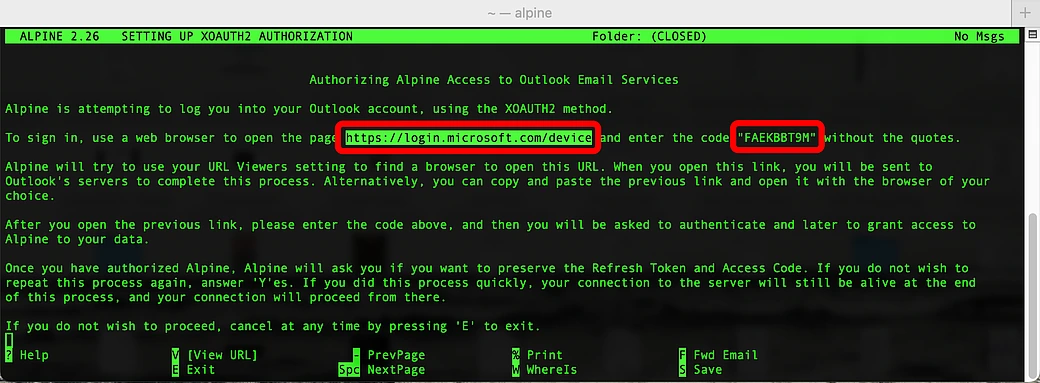
- Enter the code that is displayed on the screen.
- Click the Next button.
- Enter your IAS email address (e.g., [email protected])
- Click the Next button
On the Microsoft window, click on Work or school account.
Image

- An Institute-branded Duo Security Single Sign-On webpage will appear.
- If this is your first time seeing this screen:
- You will be prompted to enter your IAS email address (e.g., [email protected], where username is your assigned IAS username).
- Click the Next button.
- If your IAS email address is already displayed, tap the Next button.
- If this is your first time seeing this screen:
- Enter your IAS passphrase.
- Click the Log in button.
- Duo Security will prompt you to either check your smartphone for a Duo Push or enter a six-digit code from your smartphone or a Duo hardware token. Respond accordingly to complete the multi-factor authentication process.
- A Duo Security prompt will ask, "Is this your device?" Select the appropriate response.
A new window will appear: "Are you trying to sign in to Alpine?" Click the Continue button.
Image
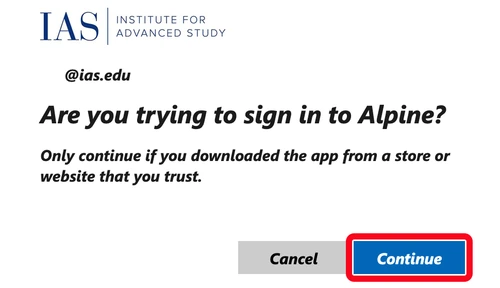
- A message will appear informing you that you have signed in to the Alpine application. You can close the web browser window.
- Return to the Terminal application.
- A message will appear near the bottom of the screen: "Preserve Refresh and Access tokens for next login?" Press the 'Y' key to confirm.
You may now begin using the Alpine application to access the email contents of your IAS mailbox.
Mobile email applications
The instructions below are for configuring the Mac Mail app on your iPhone or iPad to access the contents of your IAS mailbox.
- Tap on Settings.
- Tap on Apps.
- Tap on Mail.
- Tap on Mail Accounts.
Tap on Add Account.
Image

Enter your IAS email address (e.g., [email protected], where username is your assigned IAS username).
Image

Tap the Next button.
Image
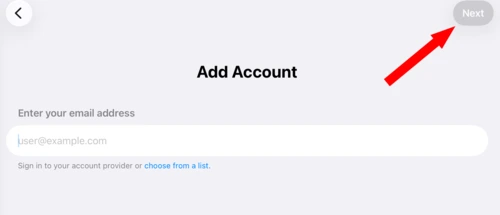
Tap Microsoft Exchange.
Image

Confirm that your IAS email address appears next to Email.
Image

Enter a description for this account. (Please enter "IAS Email" so this account can be easily recognized.)
Image
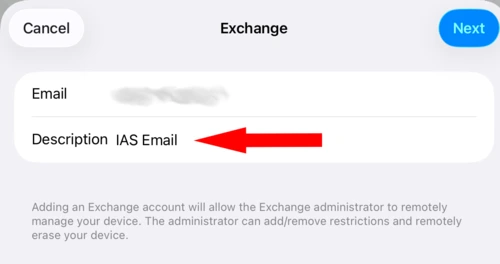
- Tap the Next button.
The window below will appear. Tap on Sign In.
Image

The window below will appear. Tap on the Continue button.
Image

- Tap on Work or school account.
- An Institute-branded Duo Security Single Sign-On webpage will appear.
- If this is your first time seeing this screen:
- You will be prompted to enter your IAS email address (e.g., [email protected], where username is your assigned IAS username).
- Click the Next button.
- If your IAS email address is already displayed, tap the Next button.
- If this is your first time seeing this screen:
- Enter your IAS passphrase.
- Click the Log in button.
- Duo Security will prompt you to either check your smartphone for a Duo Push or enter a six-digit code from your smartphone or a Duo hardware token. Respond accordingly to complete the multi-factor authentication process.
- A Duo Security prompt will ask, "Is this your device?" Select the appropriate response.
A "Success" message will briefly appear, followed by a list of items that you can select to sync to your device (e.g., Mail, Contacts, Calendars, Reminders, Notes). Choose the items that best fit your workflow.
Image

- Tap the blue Save button to add the new email account to your device.
The instructions below are for configuring the Microsoft Outlook app on your iPhone or iPad to access your IAS mailbox.
- Tap the app icon to launch it.
- Tap the Add Account button.
- Enter your IAS email address (e.g., [email protected], where username is your assigned IAS username).
- Tap the Add Account button.
- Tap Work or school account.
- Tap Unlock on the Authenticator locked screen.
- If prompted, enter the passcode to unlock your device.
- An Institute-branded Duo Security Single Sign-On webpage will appear.
- If this is your first time seeing this screen:
- You will be prompted to enter your IAS email address (e.g., [email protected], where username is your assigned IAS username).
- Click the Next button.
- If your IAS email address is already displayed, tap the Next button.
- If this is your first time seeing this screen:
- Enter your IAS passphrase in the box below Password.
- Tap the Log in button.
- Tap Unlock on the Authenticator locked screen.
- If prompted, enter the passcode to unlock your device.
- A Duo Security prompt may ask, "Is this your device?" Select the appropriate response.
- A Success message will appear on the screen, followed by an opportunity to add another account. Tap the Maybe Later button.
- If you are prompted to Enable Notifications, tap the option that best fits your workflow.
Computing tested several Android devices and found significant differences in the features offered by each one. We found that different Android devices may have different interfaces, which could slightly change the names and locations of menus and options. However, the settings used in the configuration instructions should be similar for all Android devices.
Incoming Server Settings
- Protocol: IMAP
- Hostname: outlook.office365.com
- Port: 993
- Connection Security: SSL/TLS
- Authentication Method: OAuth2
- Username: Your full IAS email address (e.g., [email protected])
Outgoing Server Settings
- Hostname: smtp.office365.com
- Port: 587
- Connection Security: STARTTLS
- Authentication Method: OAuth2
- Username: Your full IAS email address (e.g., [email protected])
The instructions below are for configuring the Gmail app on your Andoid device to access your IAS mailbox.
- Tap the Gmail app icon.
- Tap burger menu icon (≡).
- Tap Settings.
- Tap Add account.
Tap Exchange and Office 365.
Image

Enter your IAS email address.
Image

- Tap the Next button.
Tap on Work or school account.
Image
- An Institute-branded Duo Security Single Sign-On webpage will appear.
- If this is your first time seeing this screen:
- You will be prompted to enter your IAS email address (e.g., [email protected], where username is your assigned IAS username).
- Click the Next button.
- If your IAS email address is already displayed, tap the Next button.
- If this is your first time seeing this screen:
- Enter your IAS passphrase in the box below Password
- Tap the Log in button.
- Tap the Done button.
- Tap the left-facing arrow next to General settings.
- Tap the burger menu icon (≡).
- Tap the All inboxes button to display all inboxes.
The instructions below are for configuring the Microsoft Outlook app on your Andoid device to access your IAS mailbox.
- Tap the Microsoft Outlook app icon to launch it.
- Tap on Add Account.
- Enter your IAS email address (e.g., [email protected], where username is your assigned IAS username).
- Tap Continue.
On Microsoft's "We need a little more help" window, tap on "Work or school account."
Image

On the next Microsoft screen, tap on "Work or school account."
Image
- An Institute-branded Duo Security Single Sign-On webpage will appear.
- If this is your first time seeing this screen:
- You will be prompted to enter your IAS email address (e.g., [email protected], where username is your assigned IAS username).
- Tap the Next button.
- If your IAS email address is already displayed, tap the Next button.
- If this is your first time seeing this screen:
- Enter your IAS passphrase in the box beneath Password.
- Tap the Log in button.
- You will receive a Duo Security prompt on your smartphone or hardware token. Respond to the prompt to complete the multi-factor authentication process.
- A Duo Security prompt may ask, "Is this your device?" Select the appropriate response.
- A Success message will appear on the screen, followed by an opportunity to add another account. Tap on Maybe Later.
- If you are prompted to Enable Notifications, tap the option that best fits your workflow.
The Microsoft Outlook app for Android is now configured to access the contents of your IAS mailbox.