Allowing Pop-ups from Paylocity
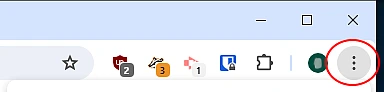
Select the three vertical dots at the top right corner of the Google Chrome window
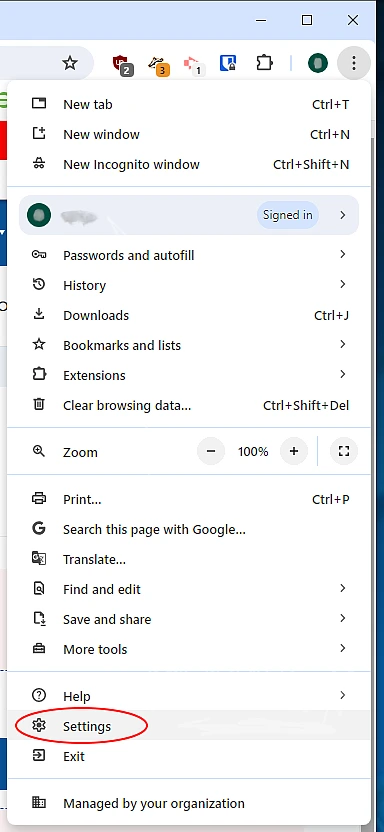
From the menu that appears, select "Settings"
In the search bar at the top of the page, type pop-up
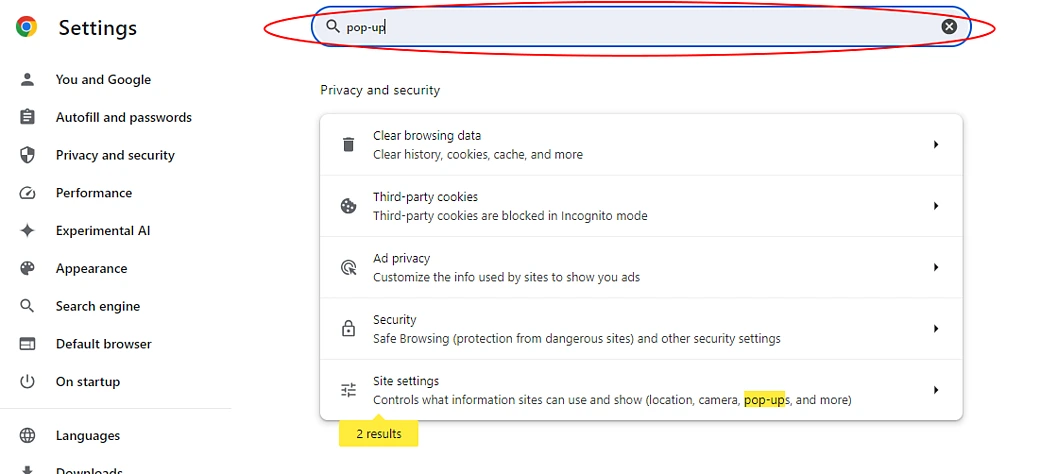
Below the search bar, select "Site settings"
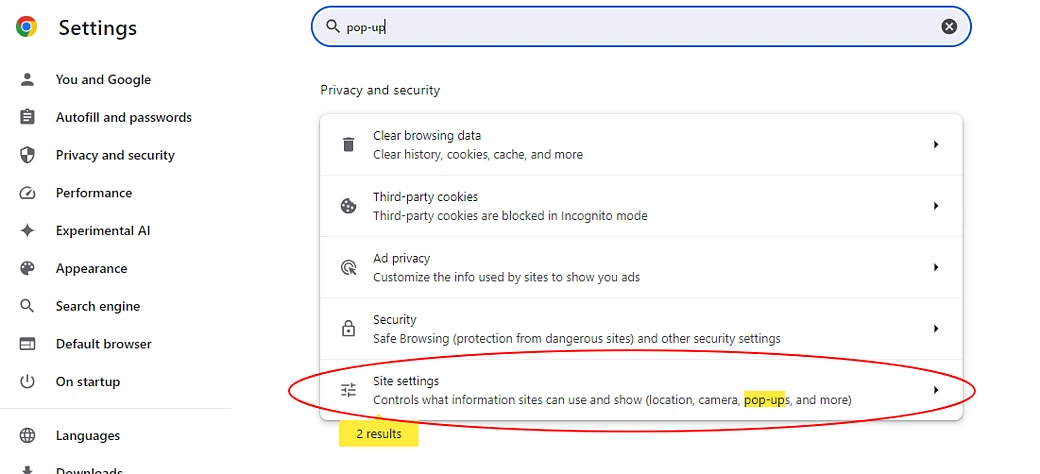
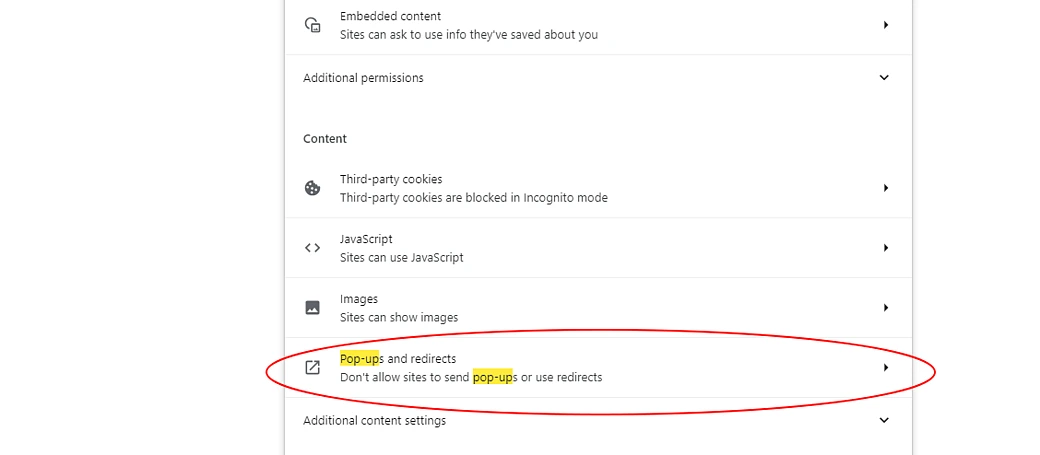
At the bottom of the page, select "Pop-ups and redirects"
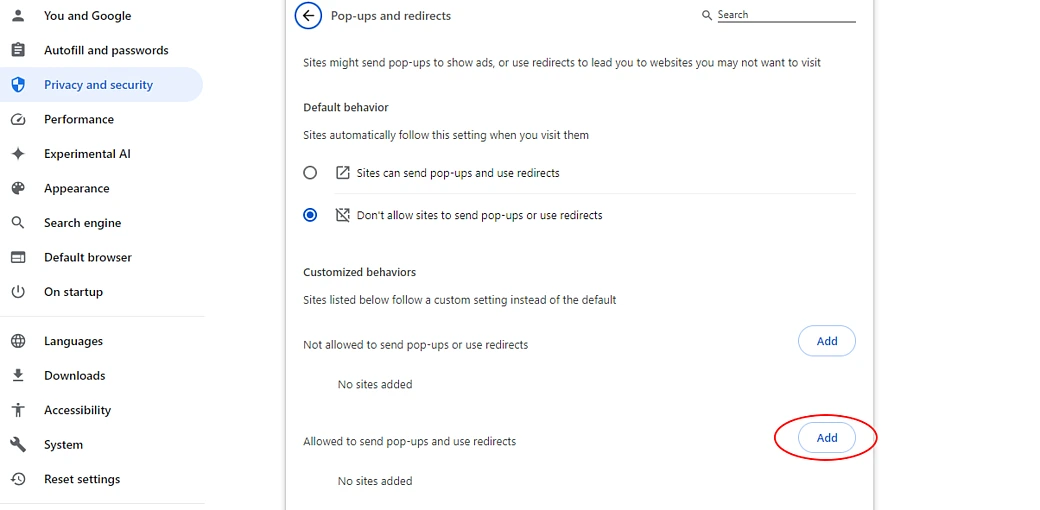
Select "Add" to the right of the header "Allowed to send pop-ups and use redirects"
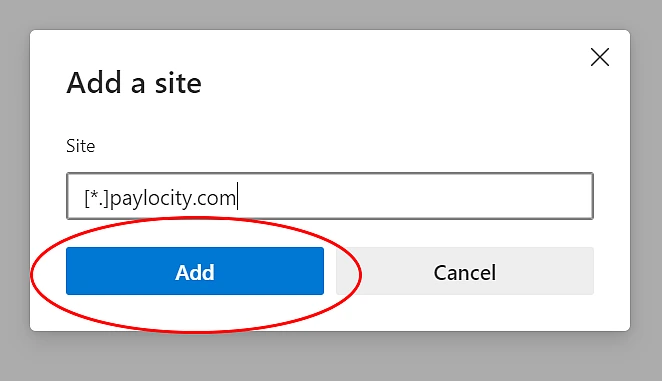
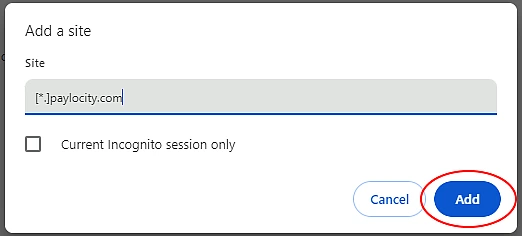
Enter [*.]paylocity.com in the text box
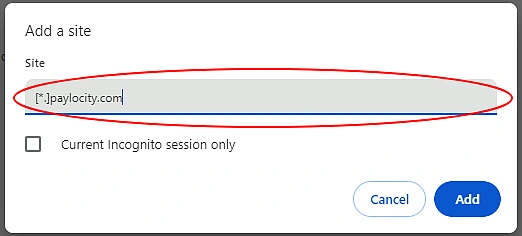
Click "Add"
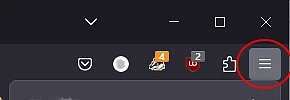
Select the three horizontal bars at the top right corner of the Firefox window
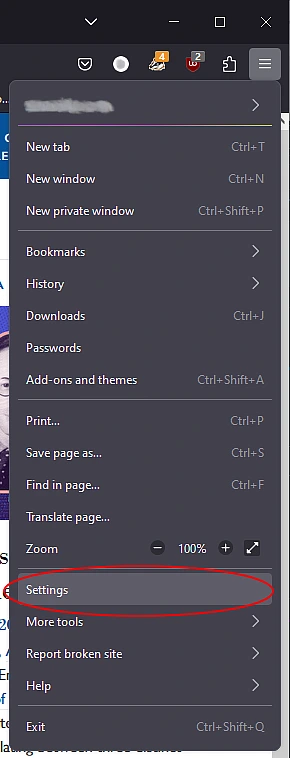
From the menu that appears, select "Settings"
In the search bar at the top of the page, type pop-up
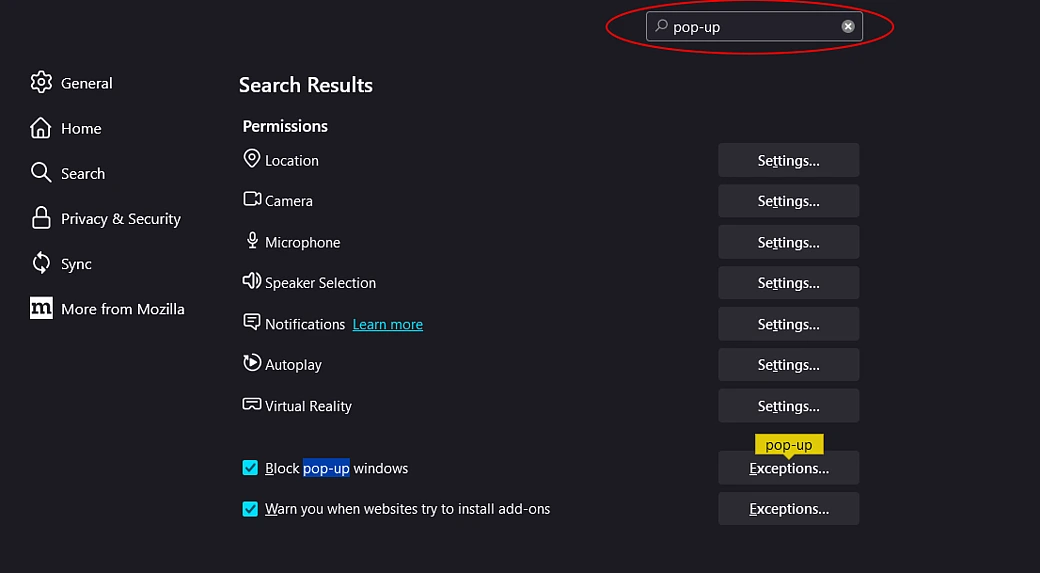
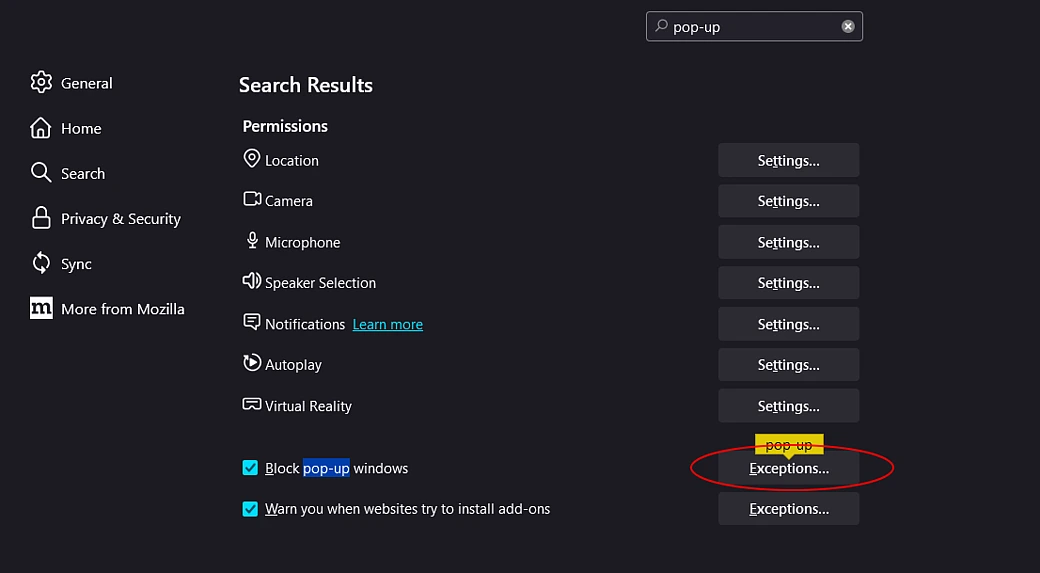
Below the search bar, select "Exceptions..." to the right of "Block pop-up windows"
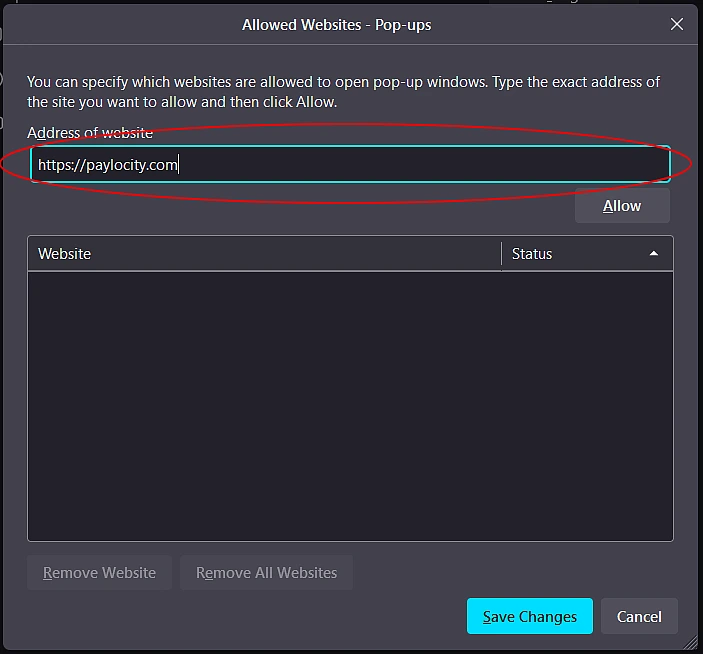
Enter https://paylocity.com in the text box at the top of the window
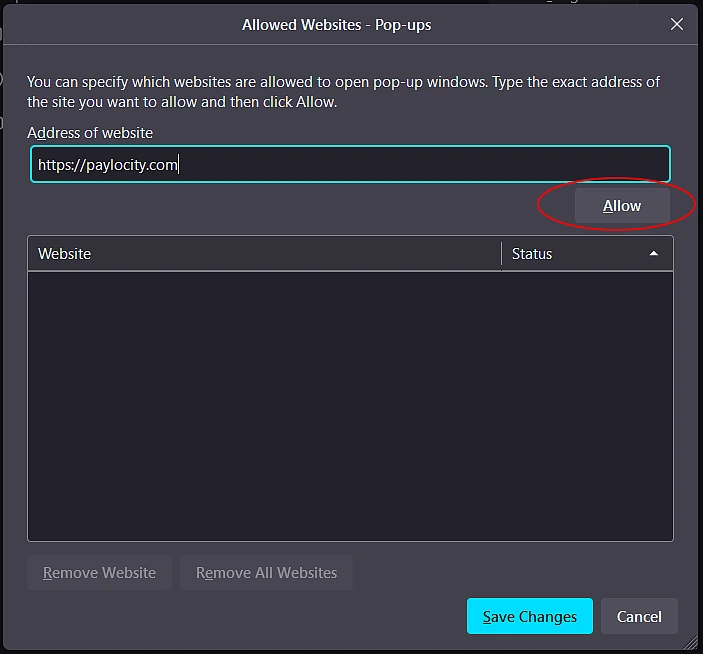
Click "Allow" just below this text box
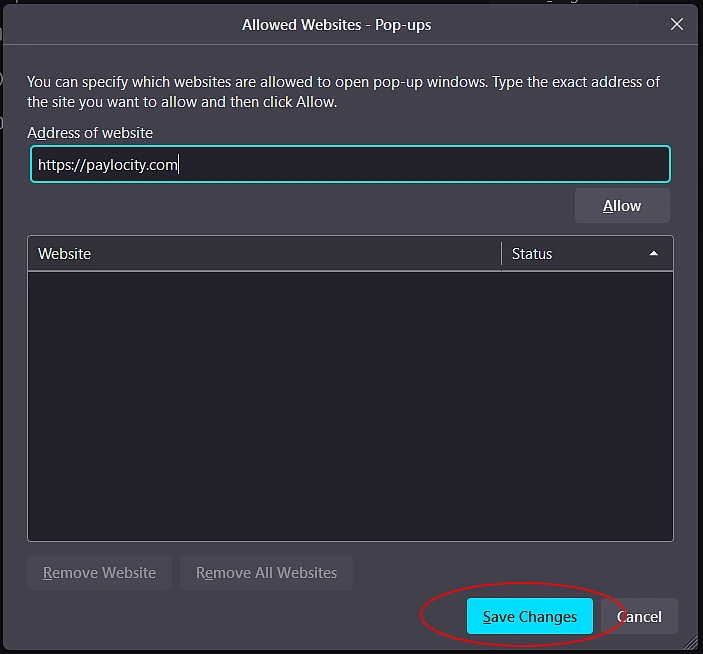
Click "Save Changes"
- Log in to Paylocity
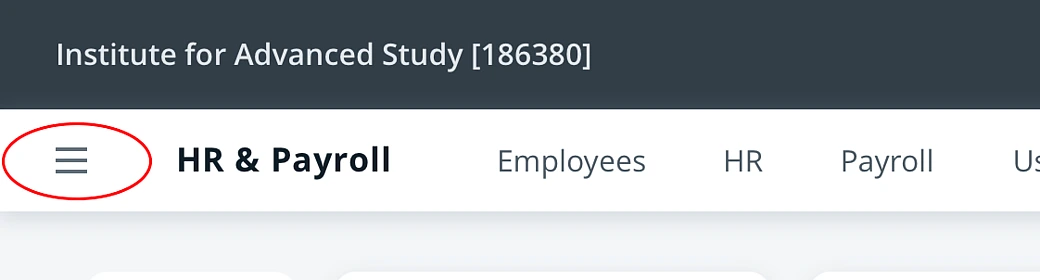
Select the three horizontal bars at the top left of the page
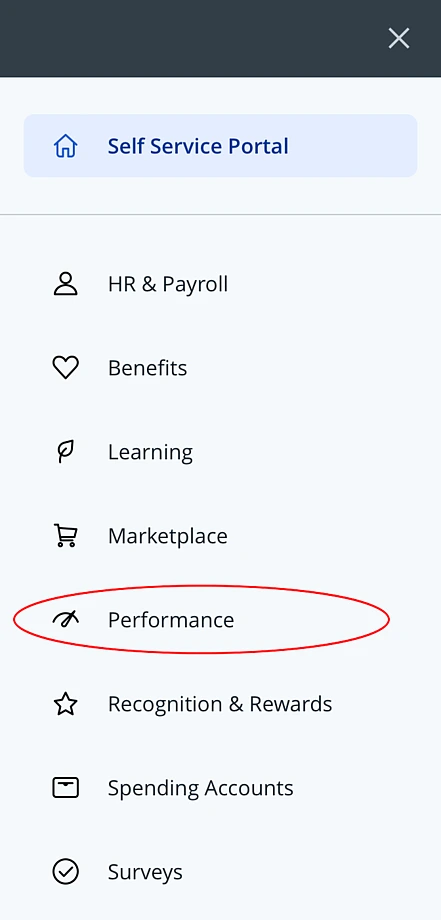
Select "Performance" from the menu that appears
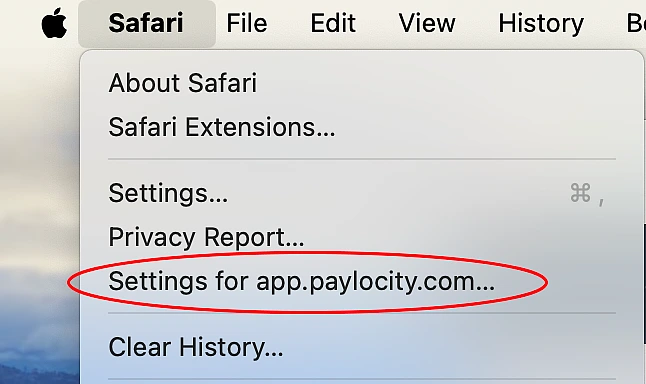
Click "Safari" in from the Apple menu bar (to the right of the Apple logo)

Select "Settings for app.paylocity.com..."
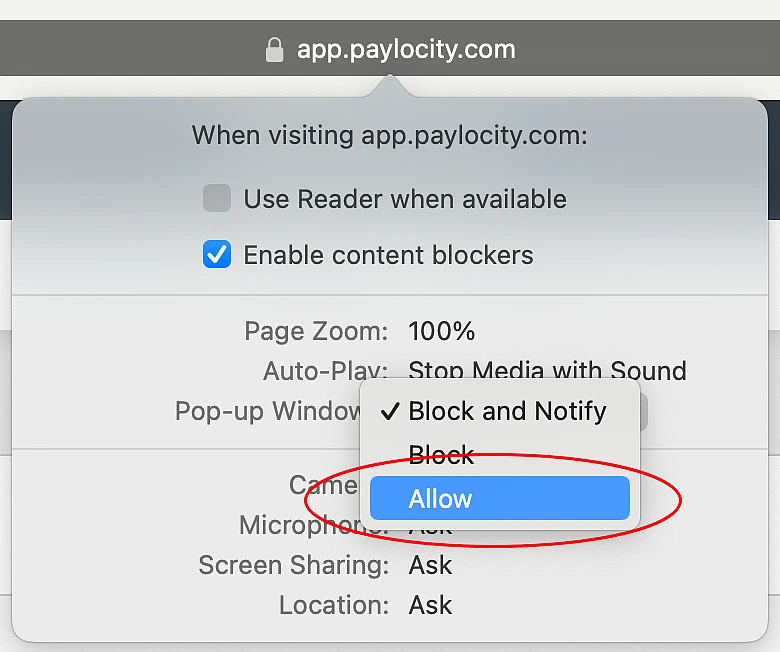
Click "Block and Notify" next to "Pop-up Windows:"
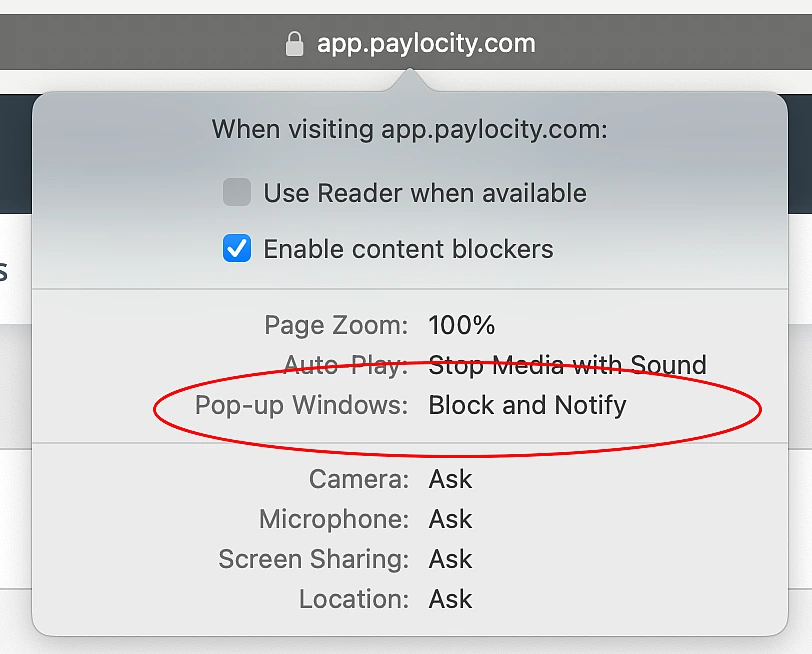
Select "Allow" from the drop-down list
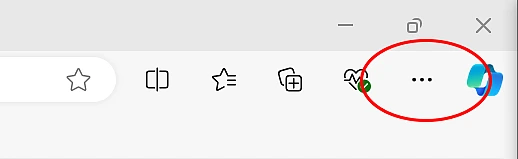
Select the three horizontal dots at the top right corner of the Microsoft Edge window
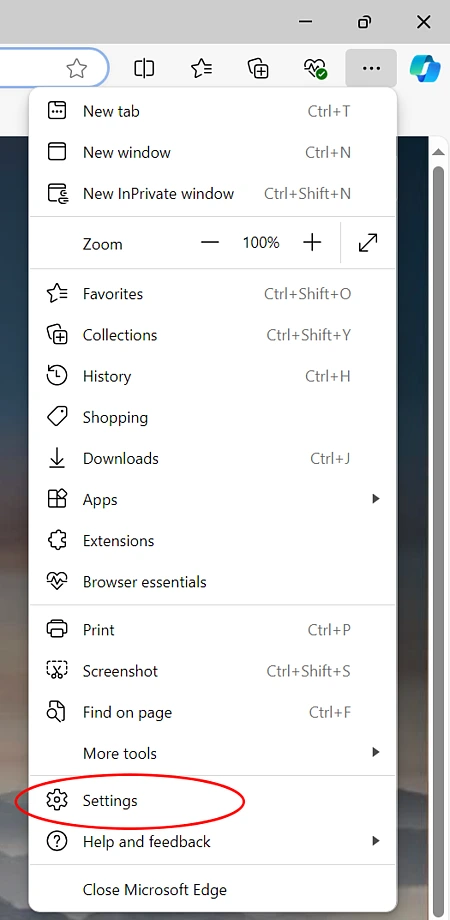
From the menu that appears, select "Settings"
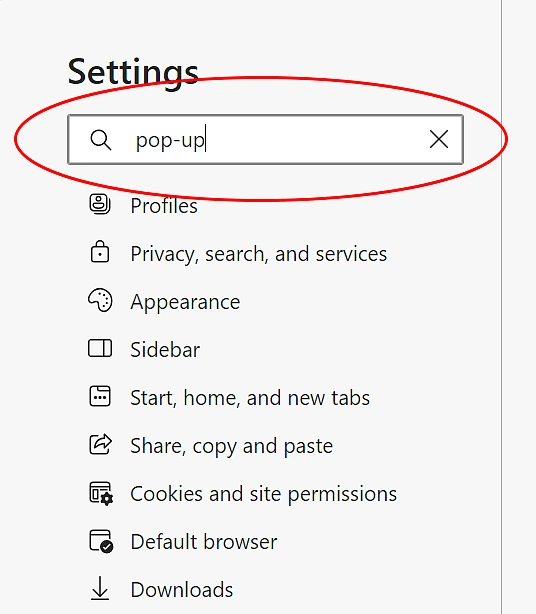
In the search bar at the top left side of the page, type pop-up
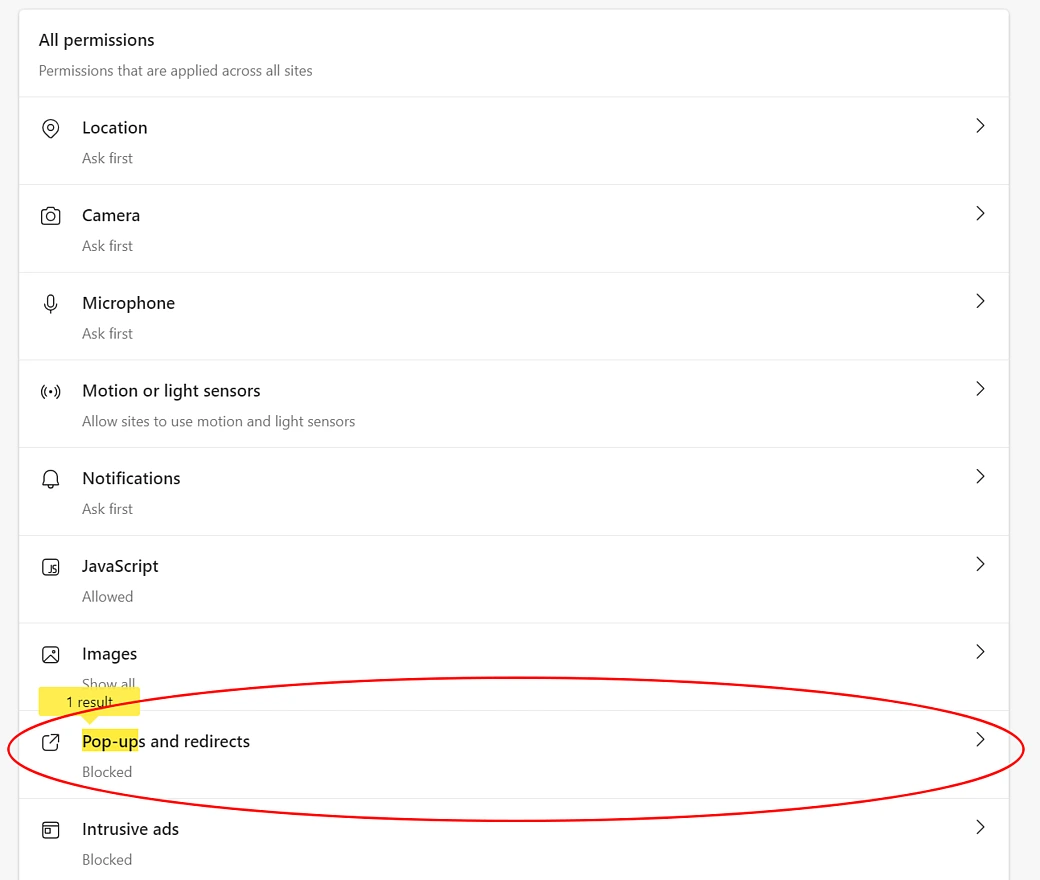
On the main part of the page, select "Pop-ups and redirects"
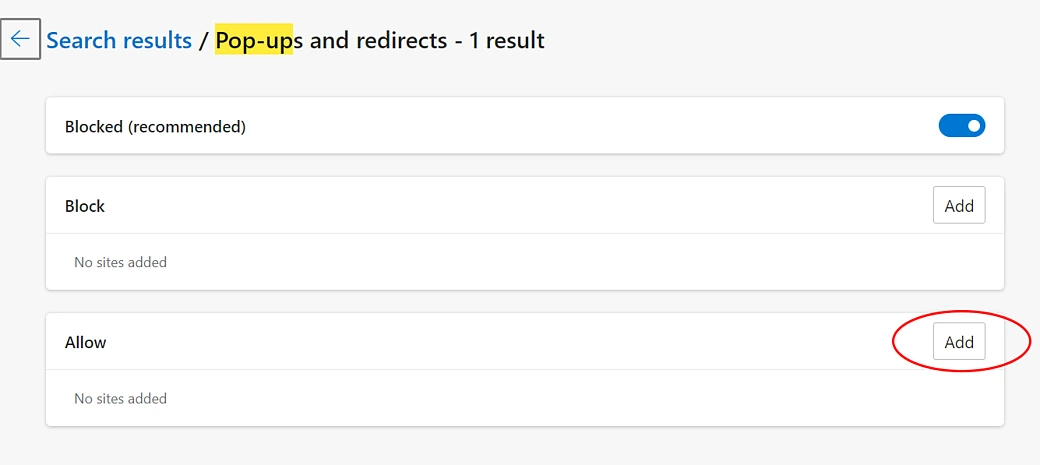
Select "Add" to the right of the header "Allow"
Enter [*.]paylocity.com in the text box
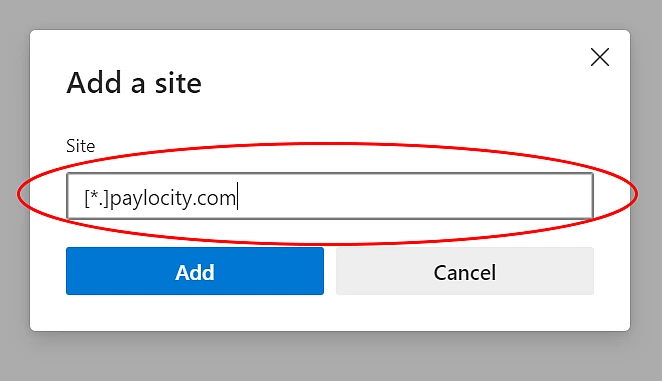
Click "Add"