How to configure an out of office message in Outlook 365
Below are instructions for configuring an out of office message in Outlook 365.
- Click the Settings (gear) icon in the upper-right corner.
Image

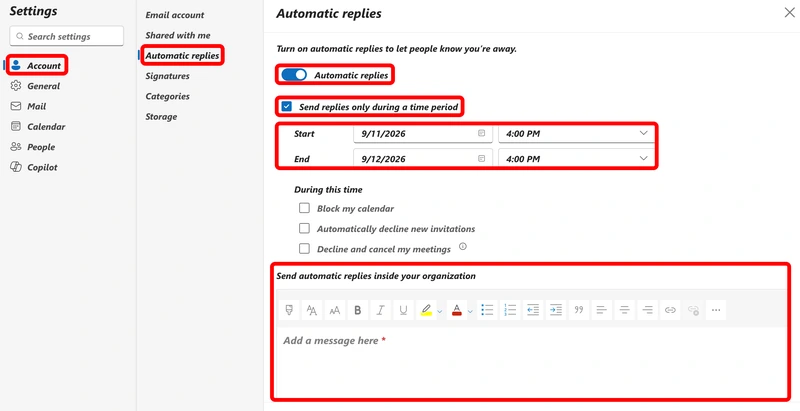
- Click on Account.
- Click on Automatic replies.
- Toggle on Automatic replies.
- Select Send replies only during a time period and enter your desired start and end times.
- Enter your away messages for internal and external contacts.
Image
- Click the Save button.