Diacritics - Linux (RHEL)
The Institute for Advanced Study officially supports the use of Red Hat Enterprise Linux. There are two main methods for accented character input in Red Hat. Need help entering accented characters or diacritics on another operating system? Click here for other operating system options.
Configure a "compose" key for dead key input
After configuring a "compose" key, you can use dead key shortcuts to input accented characters. This refers to typing a shortcut which does not input anything on its own, but modifies the next character typed. The "compose" key requires some setup.
Compose key setup:
- Open the settings app
- On the left bar, scroll down and select the "Keyboard" option
- Under the "Type Special Characters" section, select "Compose Key."
This will bring up a dialog box. Turn the switch next to "Compose Key" on. Then select a key to serve as a compose key. For example, use the <Right Alt> key.
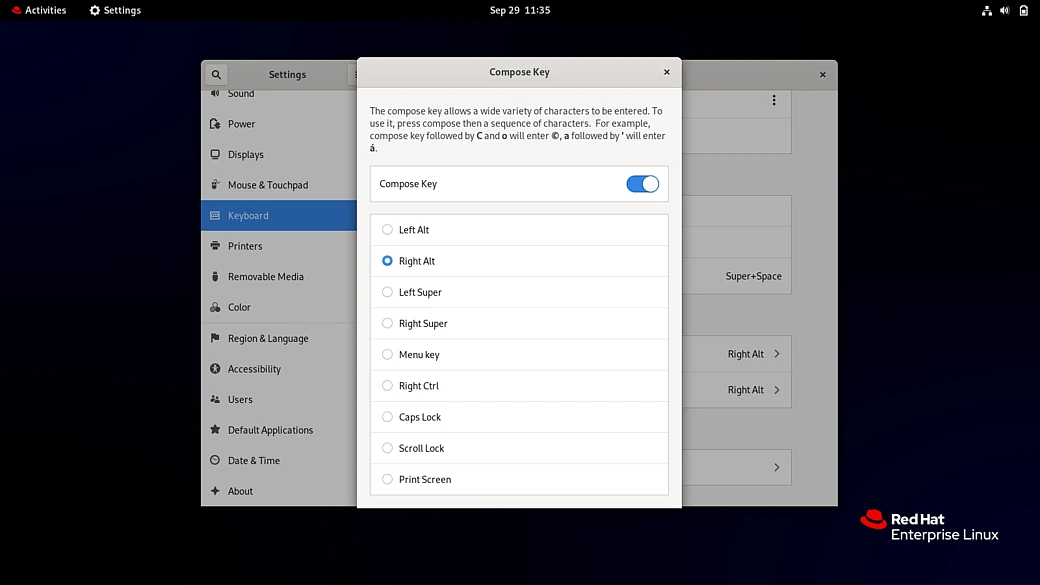 Screenshot taken on RHEL 09/29/2025
To use dead keys:
- First, hit the compose key. This starts dead key input in the text field.
- Now, use one of the diacritic shortcut keys on your keyboard to select a diacritic.
- Select the letter or vowel to input with the accent mark.
For example, press <Compose> (which in this example corresponds to <Right Alt>), then <'>, and then <e> to type "é".
Here is a list of the available diacritics and their corresponding keys.
Compose Key Sequence | Result |
|---|---|
<Compose> + <'> + <letter> | Letter with acute accent (é, á, ñ) |
<Compose> + <`> + <letter> | Letter with grave accent (è, ù, ò) |
<Compose> + <"> + <letter> | Letter with umlaut or diaeresis (ë, ö, ü) |
<Compose> + <-> + <letter> | Letter with macron (ā, ē, ō) |
<Compose> + </> + <letter> | Letter with stroke or diacritic (ø, ł, ǿ) |
<Compose> + <=> + <letter> | Letter with double acute accent (ő, ű, ȁ) |
<Compose> + <.> + <letter> | Letter with dot above (ȧ, ċ, ḋ) |
<Compose> + <,> + <letter> | Letter with cedilla (ç, ş, ņ) |
<Compose> + <^> + <letter> | Letter with circumflex accent (â, ê, î) |
<Compose> + <~> + <letter> | Letter with tilde accent (ã, ñ, õ) |
Use unicode character codes
To type unicode hex codes, you must use the shortcut <Ctrl> + <Shift> + <u> and then type the the four digit sequence for the accented character you would like to type.
Here are some examples:
- <Ctrl> + <Shift> + <u> followed by 00E0 -> à
- <Ctrl> + <Shift> + <u> followed by 00E9 -> é
- <Ctrl> + <Shift> + <u> followed by 00F1 -> ñ
- <Ctrl> + <Shift> + <u> followed by 00F4 -> ô
- <Ctrl> + <Shift> + <u> followed by 00FC -> ü
To find the hex code for a given character, open the characters app. From this app you can either use the text box to search for a given character or browse the sections on the left. Most accented characters should be under the "Letters" section.