Diacritics - Windows 11
On your Windows computer, there are both application-specific and universal methods for diacritics and accented characters.
Need help entering accented characters or diacritics on another operating system? Click here for other operating system options.
Microsoft Office Only - Dead keys with the default keyboard layout
In Microsoft Office products, you can use "dead keys" to input accented characters. Dead keys refers to typing a shortcut which does not input anything on its own, but modifies the next character typed.
Here are examples:
- <Ctrl>+ <'> followed by <a> -> á
- <Ctrl> + <Shift> + <;> followed by <u> -> ü
- <Ctrl> + <`> followed by <e> -> è
Here is a list of all available dead keys in office products, provided by Microsoft.
Universal Method - Use the US - International keyboard layout with dead keys
With the US-International keyboard layout, you can use "dead keys" to input accented characters. Dead keys refers to typing a shortcut which does not input anything on its own, but modifies the next character typed. The international layout requires some setup.
Dead keys setup:
- Go to Start > Settings > Time & Language > Language & Region.
- Click on the three dots next to "English (United States)"
- Select "Language Options"
- On the page that opens, click Add a keyboard and choose United States-International.
To use dead keys:
Check that you have the international layout selected. You will see your currently selected keyboard layout at the bottom right of your screen.
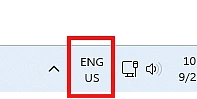 Screenshot taken from Windows 11 on 9/26/2025
To change layouts, press the <Windows> and <Space> keys. It will cycle through your installed layouts. Make sure the international layout is selected.
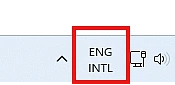 Screenshot taken from Windows 11 on 9/26/2025
When typing with this layout, diacritic punctuations will act as "dead keys," which don't immediately input a character.
- Type a diacritic/accent mark.
- Type the letter/vowel to accent
Here are examples:
- <'> followed by <a> -> á
- <Shift> + <;> followed by <u> -> ü
- <`> followed by <e> -> è
When you want to type the punctuation mark on its own, press the key followed by the spacebar.
Universal Method - Use ALT codes
To use alt codes for special character input, you must have a keyboard with a number pad. Using the number row at the top of the keyboard will not work. To type alt codes, you must hold down the alt key and then type the the four digit sequence for the accented character you would like to type.
Here are some examples:
- <Alt> followed by 0224 -> à
- <Alt> followed by 0233 -> é
- <Alt> followed by 0241 -> ñ
- <Alt> followed by 0244 -> ô
- <Alt> followed by 0252 -> ü
Here is a website with a listing of Alt codes, grouped by language.