Diacritics - MacOS
On your Mac, you can enter letters with accent marks by pressing and holding a key or by pressing multiple keys in sequence. Need help entering accented characters or diacritics on another operating system? Click here for other operating system options.
Press and hold a letter key
When you press and hold a letter key, the accent menu opens and shows the accent marks you can enter with that letter.
In an app on your Mac, press and hold a letter key on the keyboard—for example, <a>—to display the accent menu.
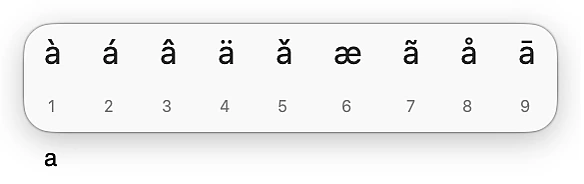 apple.comImage of mac diacritic menu
Note: The menu isn’t shown if a key doesn’t have any possible accent marks.
- Click a character in the menu—for example, á. You can also press the number key that corresponds to the number shown below the character.
Note: Accent marks may not be available in all apps.
Use key combinations
If you often type characters with accent marks, it may be quicker to use key combinations. There are two kinds of key combinations you can use.
Option Key Combinations
You can type diacritics and characters with accent marks by holding down the <Option> key on your keyboard. Sometimes these shortcuts are called "dead keys"
Here is a brief list of common diacritics you can type with this method:
Acute Accent (á): <Option> + <e>, then the vowel.
Grave Accent (à): <Option> + <`>, then the vowel.
Tilde (ñ): <Option> + <n>, then the letter.
Circumflex (ô): <Option> + <i>, then the vowel.
Umlaut/Diaeresis (ü): <Option> + <u>, then the vowel.
Cedilla (ç): <Option> + <c>.
For example, to enter the accented letter ã using the ABC keyboard layout, press Option-N to enter a tilde ˜, then press the a key.
Using the Character Viewer Menu
You can also use the macOS character viewer to input diacritics as well as many other special characters. You can access the character viewer by holding down <Fn> and <e> on your keyboard. On some keyboards, there may be a <Globe> key instead of a <Fn> key.
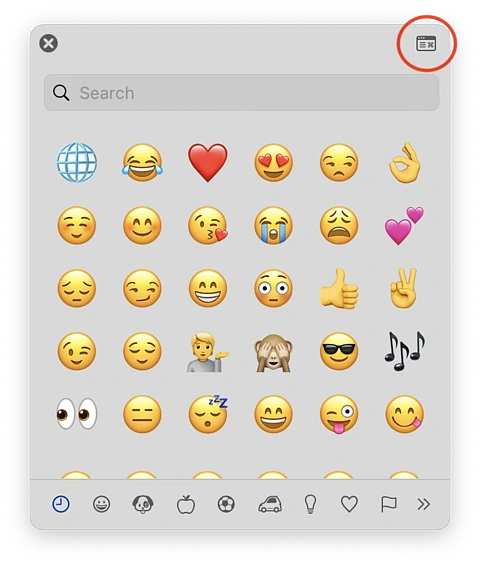
When you first open the menu, you will see this interface, which by default only shows emoji and a select number of symbolic characters. You will need to click on the highlighted button to view all options, including diacritics and accented characters.
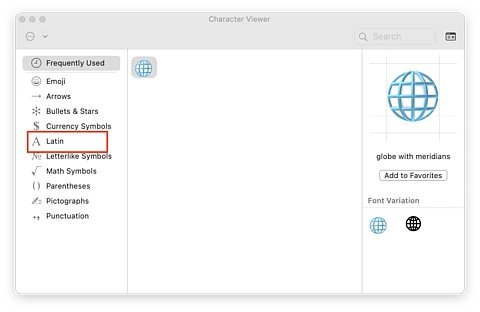
After clicking that option, the interface will expand to show many more options. On the left you will find many useful options for characters. Select "Latin" on the left, and you will be able to find a variety of accented characters and diacritics.