How do I change my Keyboard to a different language?
If you are familiar with changing keyboard layouts on Gnome 2, it is very similar to how Gnome 3 changes the layout.
Gnome 2
Gnome 3 Classic
Gnome 3 Standard
- If you're using Gnome 3 scroll down past the next two pictures.
- Find system and go to 'preferences', then navigate till you see 'keyboard'
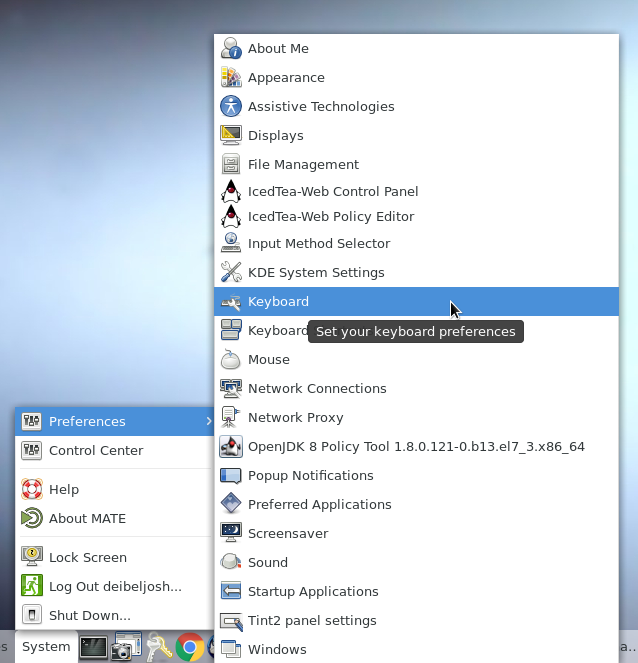
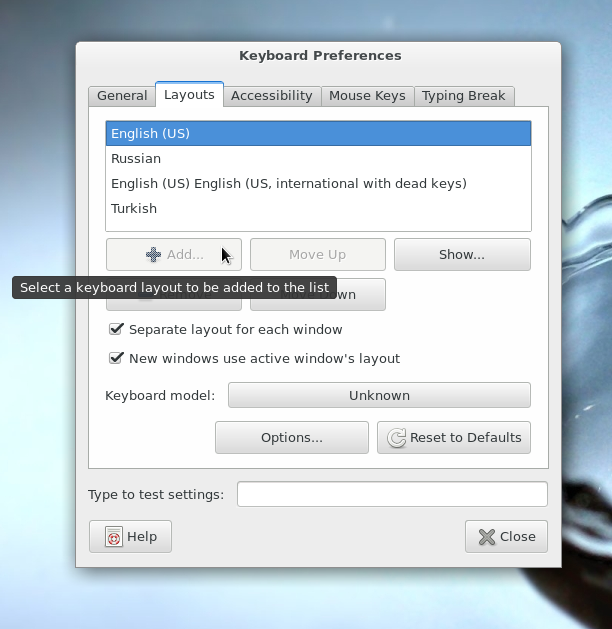
- A window will appear. Just click the layouts tab then hit the 'add' button to add the different kind of layouts you want.
- Very similar to Gnome 2. First thing you'll want to do is click on Applications on the top left corner and go to System Tools
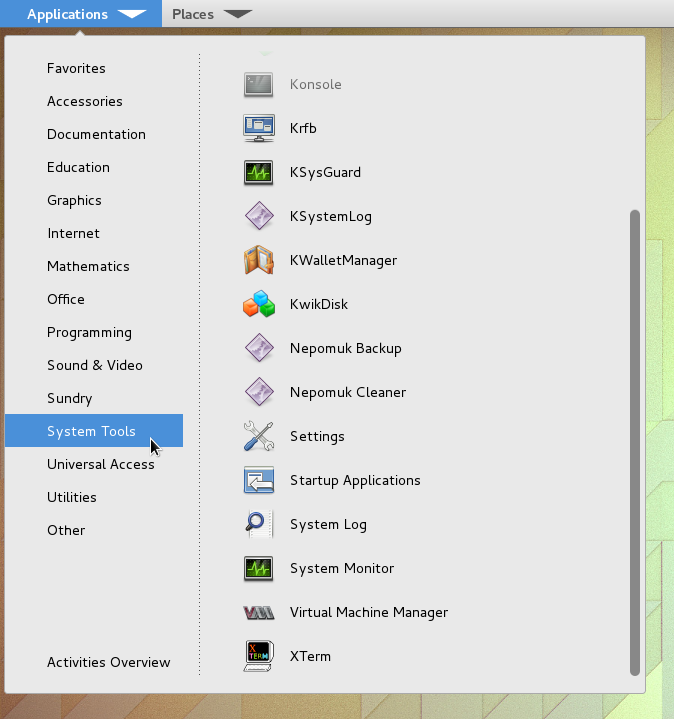
- Next click on settings inside System Tools (Settings) and a window will appear. Click on Region & Language and yet another window will appear.
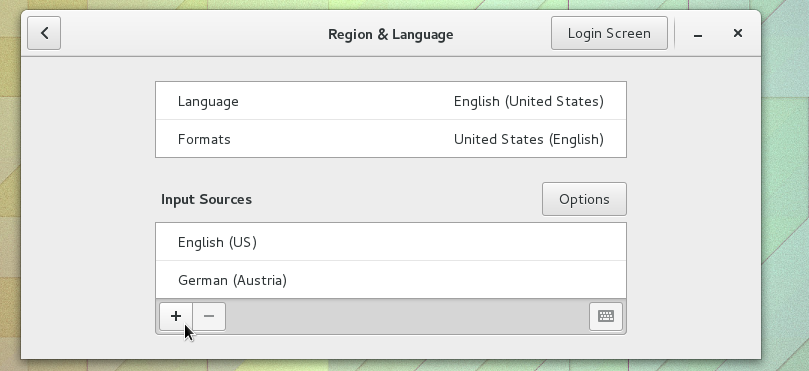
- Click on the '+' symbol to add another language of your choosing. After you can close the window normally and you will see the drop down of your selections in the top right corner.
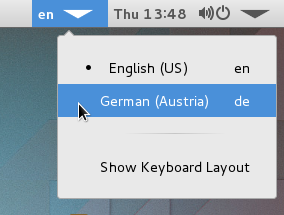
To toggle between input sources, you can use the keyboard shortcut : Windows + Space (next) or Shift + Windows + Space (prev) to go through your different keyboards. You should see the keyboard indicator in the top right.
NOTE: If the new language does not work after adding the layout, you may need to log out and back in, or reboot your computer
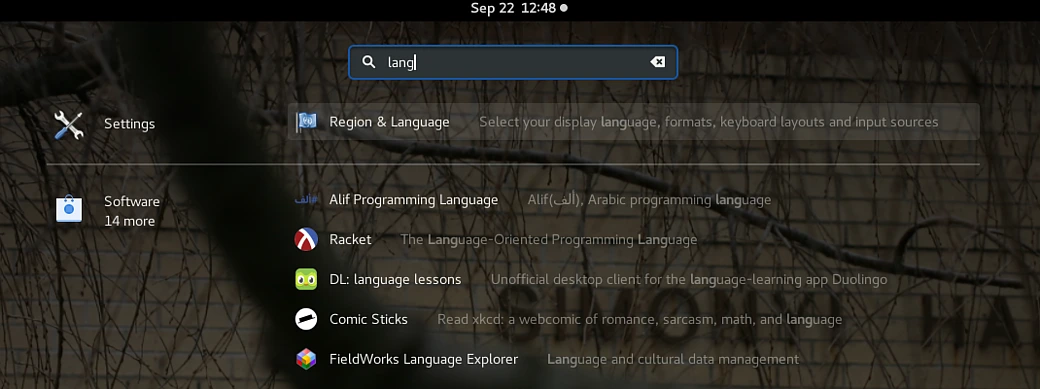
- First thing you'll want to do is click on Windows key on your keyboard, then type Language or Settings
Click on Region & Language
Edit media

- Click on Language
Type the language you are interested in. In this example, we are using Hebrew
- Click on Done
Under Input Sources, click on the + sign
- Type the keyboard format you want to add, then select it
Click on Done
If shown, click on Restart
To toggle between keyboard layouts, click on the upper right-hand section and choose the format.